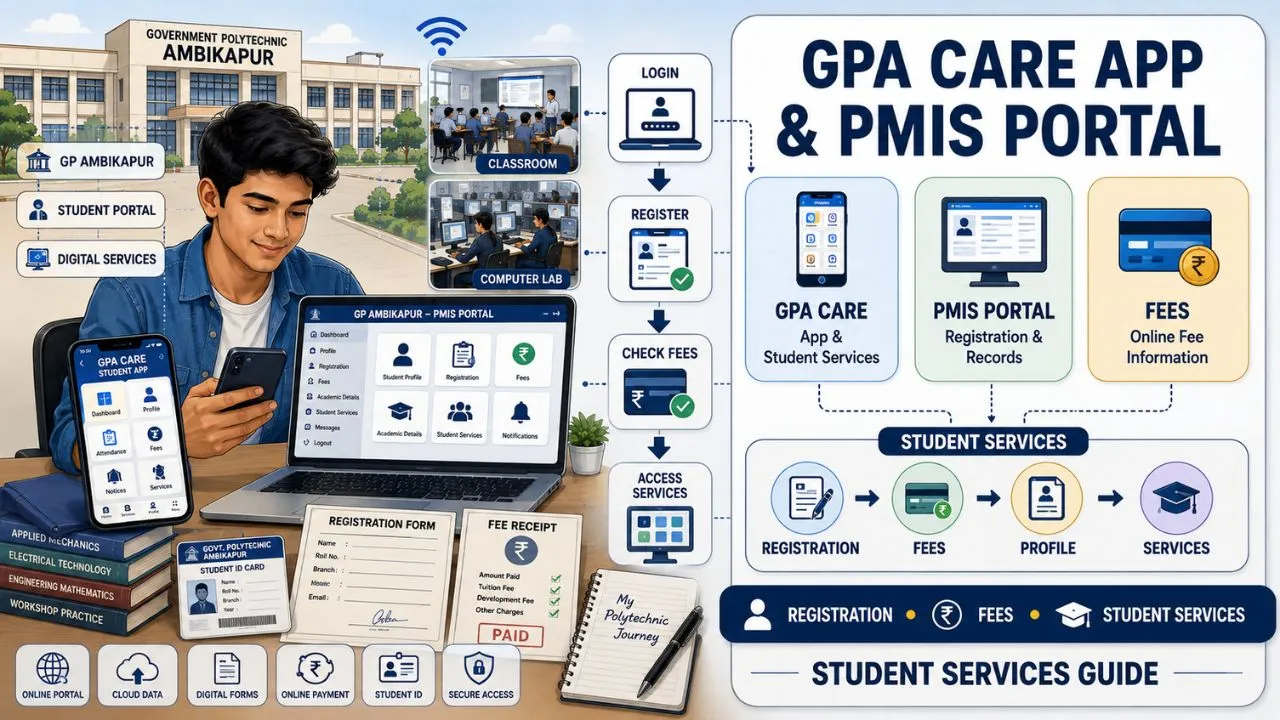
Government Polytechnic Ambikapur has been adding more digital services to make routine student work easier. Instead of visiting the college office for every update, students can use online platforms for several academic and administrative tasks. Two names that students may come across are the GPA CARE app and the PMIS portal. These platforms serve different purposes, so knowing which one to use can save time.
The college website currently highlights PMIS registration among its online student-related services. It also provides links for admission information, SBI Collect, e-library and other digital facilities. This guide explains how students can approach registration, fee-related work, portal access and other services without getting confused between different platforms.
Table of Contents
What Is the GP Ambikapur GPA CARE App?
GPA CARE is designed as a digital student-support platform associated with Government Polytechnic Ambikapur. The purpose of a college app such as this is to bring routine academic information and student services into one place.
Depending on the features enabled for a particular session, students may use the platform to access information related to their academic records, notices, attendance, examinations, fees or other institutional services.
The exact options visible inside the application can differ according to the student’s login and the services activated by the college. This means a student should not assume that every account will display the same menu. If a particular option is missing, it may be because the service is not currently enabled for that account or semester.
What Is the PMIS Portal?
PMIS is another digital platform used for student-related processes. Government Polytechnic Ambikapur’s official website currently provides a dedicated notice directing students to register on the PMIS portal.
For students, the portal can be particularly relevant when the college asks them to complete a specific registration or update their details online.
PMIS should therefore not be confused with a general payment gateway. If a college notice specifically asks students to complete PMIS registration, follow that instruction rather than attempting to complete the process through another service.
The safest approach is to access the portal through the link provided by Government Polytechnic Ambikapur.
GPA CARE App vs PMIS Portal
The two platforms should be viewed as separate digital services. The GPA CARE app is more closely associated with day-to-day student information and college services available through a mobile interface.
PMIS, on the other hand, can be used when the college requires students to complete specific registration or student-information processes. There may be some overlap in the information connected with a student’s academic profile.
However, one platform does not necessarily replace the other. If a notice specifically mentions GPA CARE, use the app. If the notice says PMIS registration is required, complete the process on PMIS. This simple distinction can prevent students from submitting information in the wrong place.
How to Register for the GPA CARE App
Before starting registration, keep your basic college information available. Your enrollment or admission details, registered mobile number and other information supplied by the college may be required.
The registration process can vary depending on the current version of the application. A typical process begins with installing or opening the official GPA CARE application.
Use the application source or download information provided by the college rather than installing an unknown application with a similar name. Once the app opens, look for the registration or student login option.
Enter the details requested on the screen. These may include an enrollment number, student ID, mobile number or other college-provided credentials.
If the system sends an OTP, enter the OTP received on your registered mobile number. Create or confirm your login credentials when prompted. After successful registration, sign in and check whether your profile information is correct. Pay particular attention to your name, course, semester, enrollment details and contact information.
If something is incorrect, do not repeatedly edit the information without understanding the consequences. Contact the college office or the relevant department for correction instructions.
What to Do If GPA CARE Login Does Not Work
Login problems are common when students enter an incorrect enrollment number, mobile number or password. Start by checking the details carefully. Make sure there are no unnecessary spaces and that the correct mobile number is being used.
If the app provides a password-reset or account-recovery option, use that facility. Students should also check whether the mobile number used during registration is the same number recorded by the college. An old or incorrectly registered number can prevent OTP verification.
If the problem continues, take a screenshot of the error message. Keep your enrollment number and other basic details ready before contacting the college. This allows the staff to identify the account more quickly. Avoid sharing your password or OTP with another person while seeking technical help.
How to Register on the PMIS Portal
The PMIS registration process should be completed according to the latest instructions issued by Government Polytechnic Ambikapur. Start from the PMIS registration link provided on the college’s official website or through an official college notice.
Avoid using random links shared through social media groups. Once the portal opens, look for the registration option mentioned in the college instructions.
Enter the requested student information carefully. This can include personal details, academic information, contact details and other identification information depending on the form currently active.
Use the same information that appears on your official college records. Check spellings before submitting the form. A small mistake in your name, enrollment number or contact information can create problems later.
After submission, save the registration number, login details or confirmation information displayed by the portal. Taking a screenshot can also be useful for future reference.
Documents and Information to Keep Ready
Digital registration becomes easier when the required information is already available. Students should keep their basic academic and identity records nearby.
Depending on the service, the portal may ask for information from documents such as:
- Class 10 marksheet
- Diploma admission details
- Enrollment or registration number
- Aadhaar or another identity document
- Recent photograph
- Mobile number
- Email address
- Bank account details where required
- Category or domicile information where applicable
Not every service requires all of these documents. The actual requirement depends on the form being completed. Do not upload documents simply because an option appears on a portal. Read the instructions and submit only the information requested for that particular process.
Using Online Fee Services
Fee-related work can involve a separate payment system. Government Polytechnic Ambikapur’s website provides an SBI Collect link among its online services. Students should check the current college notice or fee instruction to determine whether a particular payment needs to be made through SBI Collect or another specified payment method.
Before paying, check the course, semester, fee category and amount displayed on the payment page. Do not assume that the amount is correct simply because the payment page has opened.
If the amount looks different from the fee mentioned in the college notice, stop and verify it before making the payment. After successful payment, save the transaction reference number and download the receipt whenever the option is available.
The receipt can become important if the payment is not immediately reflected in the student record.
What If Money Is Deducted but the Fee Status Is Pending?
Payment-related problems can happen because of network interruptions or delayed confirmation from the bank. Suppose money is deducted from your account but the college portal still shows an unpaid status.
Do not immediately make a second payment. First, check your bank statement or transaction history. Save the transaction ID, payment date, amount and screenshot of the payment status.
Then follow the college’s instructions for reporting failed or pending transactions. Making another payment without checking the first transaction can create unnecessary complications.
The same principle applies when the browser closes immediately after payment. Check the transaction status before attempting another payment.
Checking Student Information Online
Digital platforms are useful because students can access information without repeatedly visiting the administration office. The services available to a particular account may include academic or administrative information depending on what the college has integrated.
Students should regularly check official notices and their online account during important periods. This is particularly useful around examinations, fee deadlines, registration periods, industrial training and other academic activities.
A portal can show information, but students remain responsible for following the deadline mentioned in the official notice. Do not rely only on an old screenshot or message from a class group. College instructions can change during the academic session.
Common Mistakes Students Should Avoid
The biggest mistake is entering incorrect personal or academic information. Check your enrollment number before submitting any form.
Another common problem is using an old mobile number. If OTP verification is required, access to the registered number becomes important.
Students should also avoid creating multiple accounts unless the college specifically instructs them to do so. Multiple registrations can make it difficult to identify the correct record.
Do not share login passwords, OTPs or payment details with friends. If someone is helping you fill out a form, enter sensitive credentials yourself.
Students should also avoid paying through unofficial links. When money is involved, use the payment route mentioned by the college.
How to Keep Your Digital Student Records Safe
Students should treat their college login details as private information. Use a strong password where the platform allows password creation. Avoid saving passwords on public computers.
After completing work on a shared computer, log out properly. Keep screenshots or PDFs of important confirmations. These records can include registration confirmations, fee receipts, application numbers and payment transaction IDs.
A separate folder on your phone or computer can make these documents easier to find during examinations, admission procedures or document verification. Also keep important files backed up. Losing a phone should not mean losing every college receipt and registration confirmation.
When You Should Contact the College Office
Online systems are designed to reduce routine paperwork, but they cannot resolve every problem automatically. Contact the college when your name or enrollment details are incorrect.
The same applies if your payment has been deducted but remains unresolved, your account cannot be activated, or an important service is missing from your login. Students should also contact the college when the portal gives an error that cannot be resolved through the available recovery options.
When contacting staff, explain the problem clearly. Include your name, enrollment number, course, semester and a screenshot of the issue where appropriate. For payment problems, include the transaction reference number instead of only saying that money was deducted. This makes it easier for the concerned department to investigate the issue.
A Simple Digital Routine for GP Ambikapur Students
Students can avoid many last-minute problems by following a simple routine. Check the official Government Polytechnic Ambikapur website regularly for notices.
When a new notice mentions PMIS, GPA CARE, fee payment or another digital service, read the instructions completely before starting. Complete the process well before the deadline.
After submitting a form, save the confirmation. After making a payment, save the receipt. After completing PMIS registration, retain the registration details. After logging into GPA CARE, check that your profile information is accurate. This routine takes only a few minutes but can prevent considerable trouble later.
Final Words
The GPA CARE app and PMIS portal are part of the growing digital system used to manage student services at Government Polytechnic Ambikapur. For students, the main advantage is convenience.
Use GPA CARE when the college directs you to the app. Use PMIS when a college notice asks you to complete PMIS registration. For fees, follow the payment method specified in the current college instructions. Keep your enrollment details accurate, save every confirmation and receipt, and never share passwords or OTPs.
Digital services are useful only when the information entered into them is accurate. A few careful checks before submitting a form can save students from unnecessary corrections, payment issues and missed deadlines later.